Full Disk Access
macOS Sonoma (14) and later
Click the Apple menu icon
 → System Settings.
Click Privacy & Security → Full Disk Access.
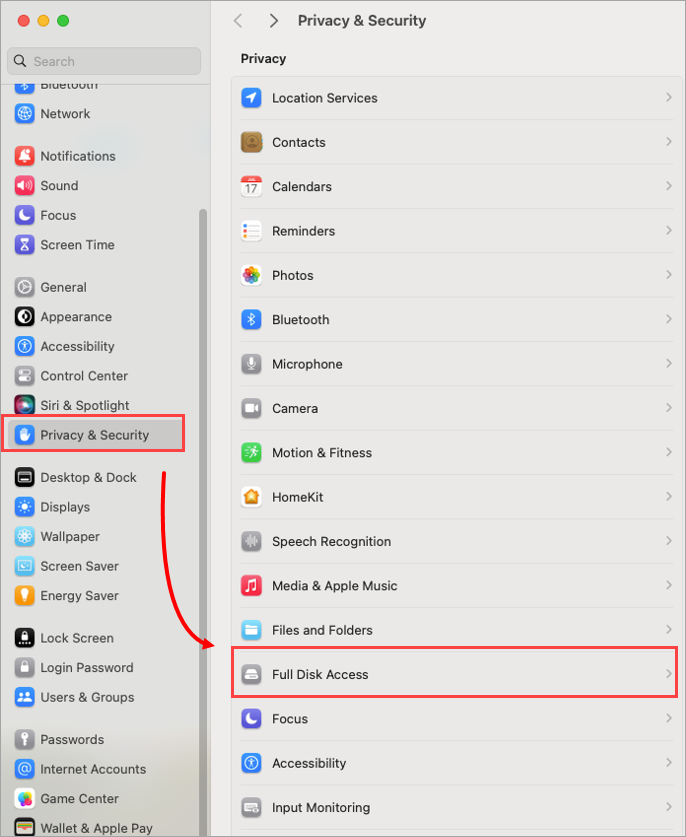 Figure 1-1
Click the toggles next to ESET Endpoint Security and ESET Real-Time File System Protection. The number of options can differ based on your ESET security product for macOS.
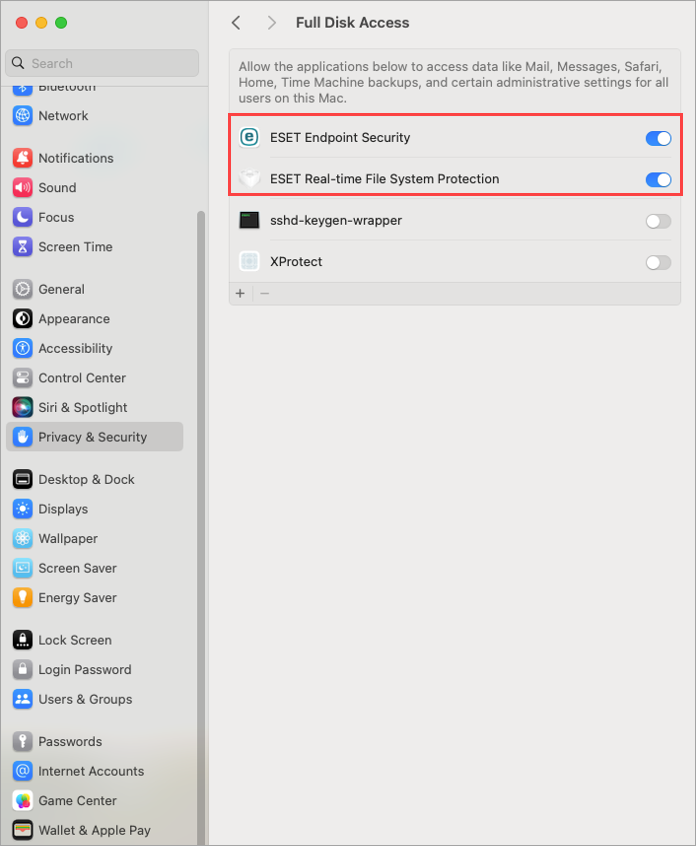 Figure 1-2
You may need to use your Touch ID or click Use Password and type in your User Name and Password, then click Modify Settings to enable Full Disk Access.
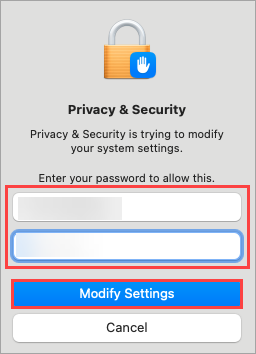 Figure 1-3
macOS Ventura (13) and later
Click Open System Preferences.
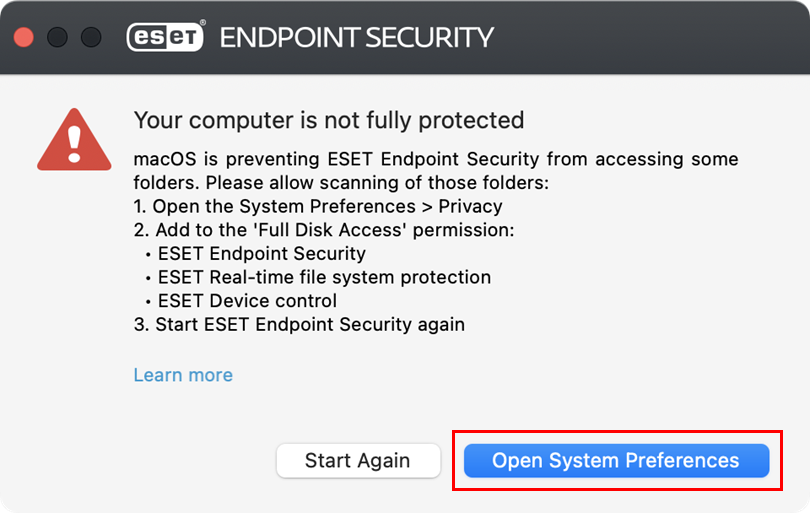 Figure 2-1
Click the toggles next to all the ESET options to enable them. The number of options can differ based on your ESET security product for macOS.
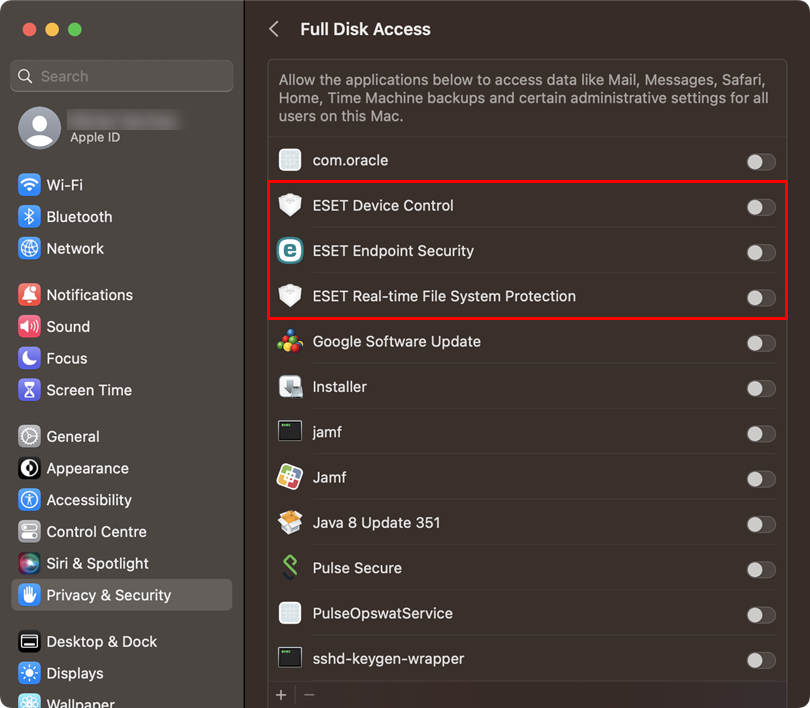 Figure 2-2
You may need to use your Touch ID or click Use Password and type in your User Name and Password, then click Modify Settings to enable Full Disk Access.
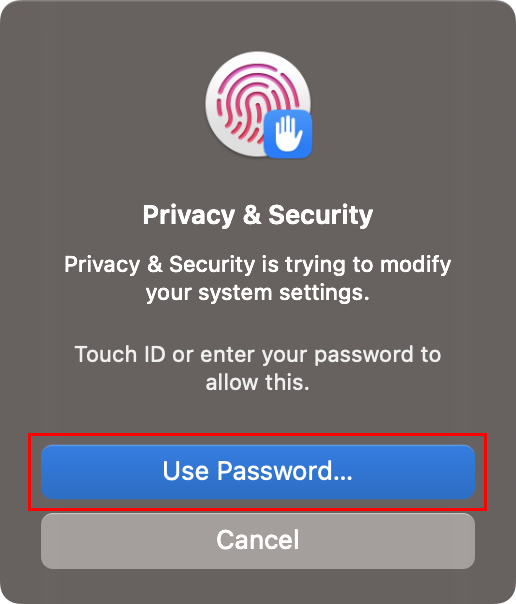 Figure 2-3
Click Open System Preferences.
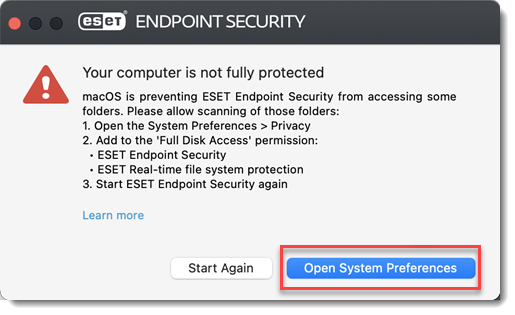 Figure 3-1
Click the lock icon to make changes.
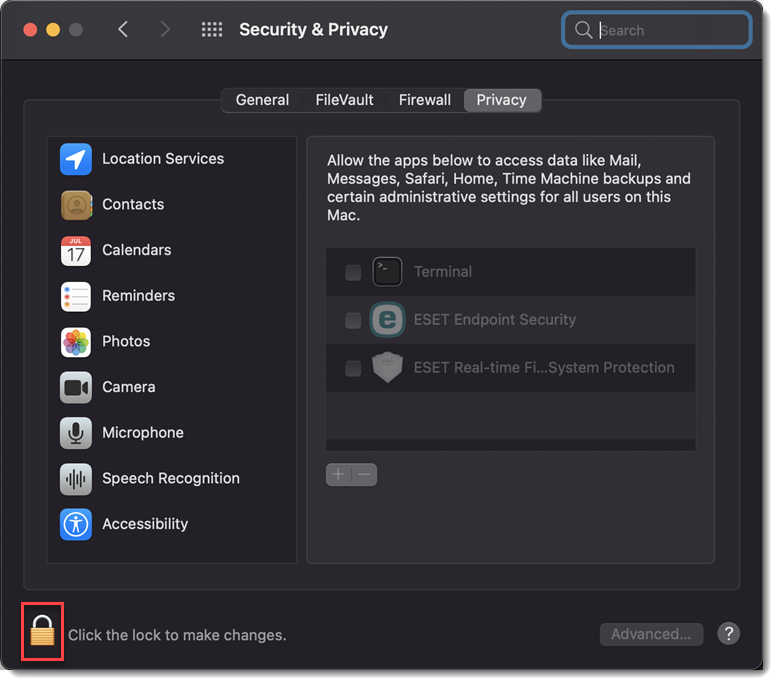 Figure 3-2
Use your Touch ID or click Use Password... and type in your User Name and Password, then click Unlock.
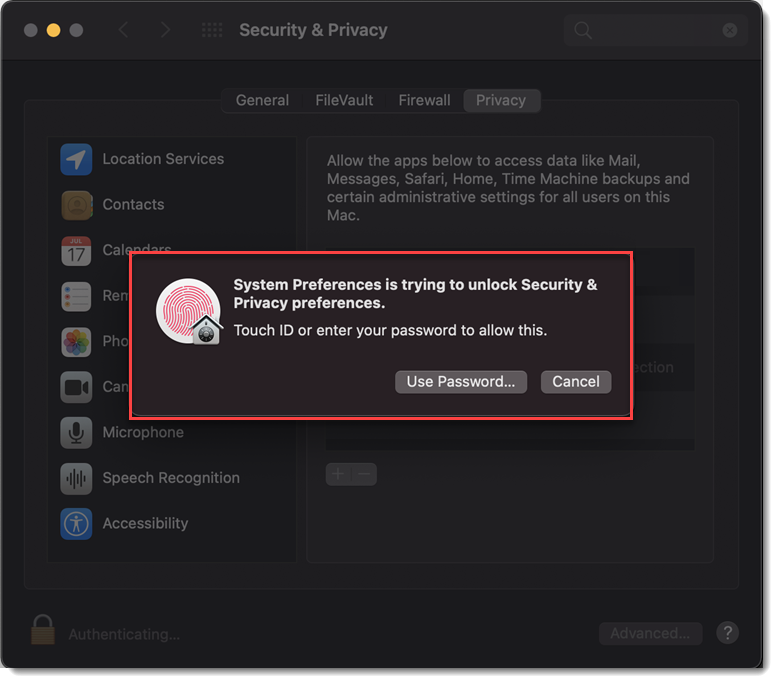 Figure 3-3
Select your ESET app.
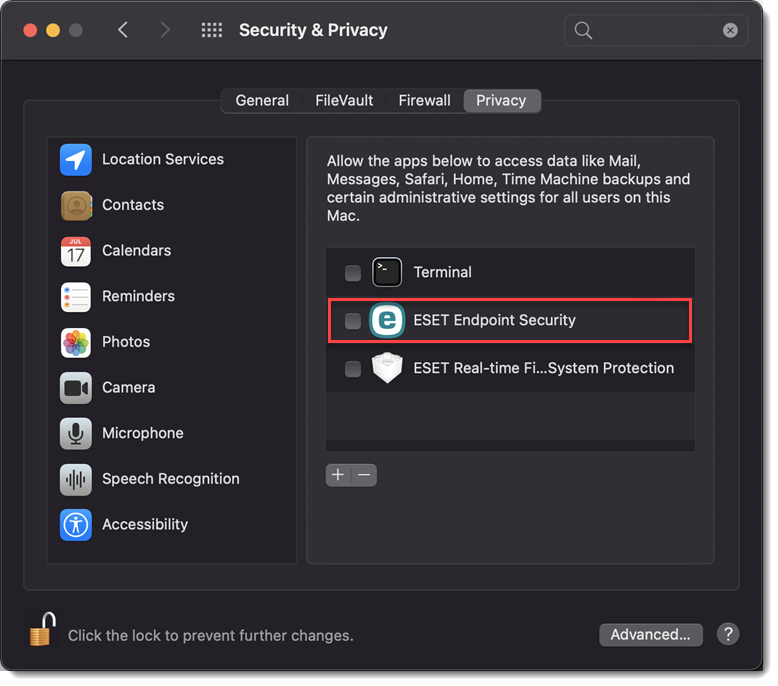 Figure 3-4
Your computer will display a notification. Click Later. Do not restart your computer in this step.
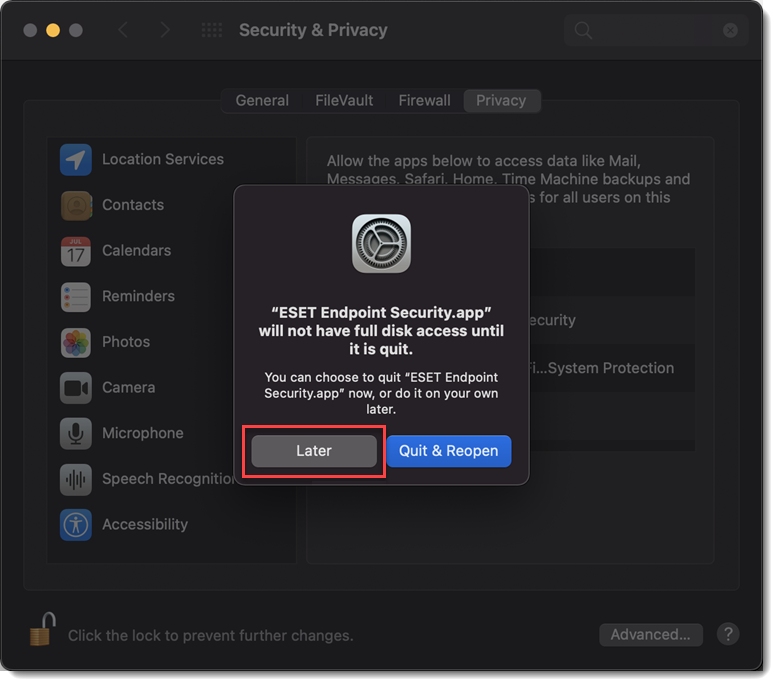 Figure 3-5
Select ESET Real-time File System Protection.
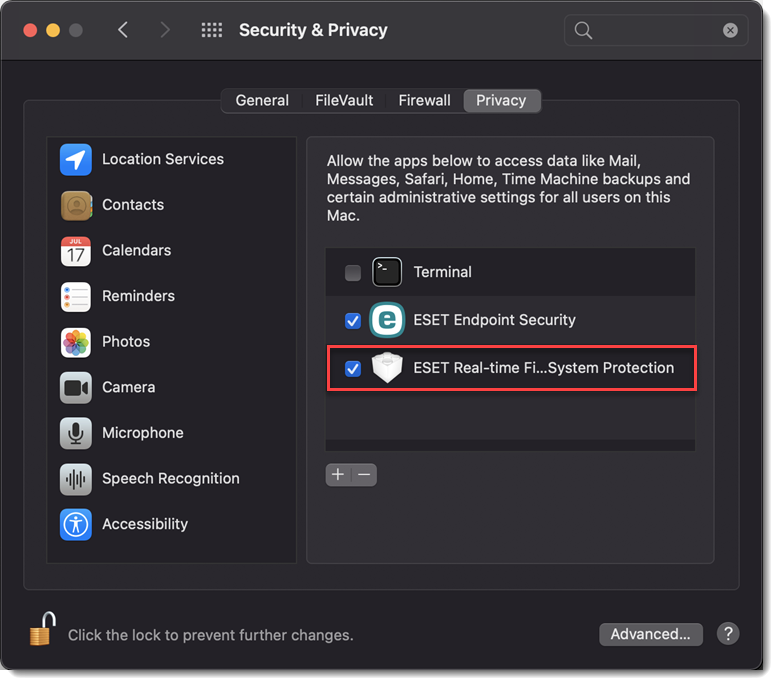 Figure 3-6
ESET Real-time File System Protection is not present
If this option is not present in the table, you need first to allow system extensions for your ESET product.
Allow system extensions for your ESET product.
Click Start Again or restart your computer.
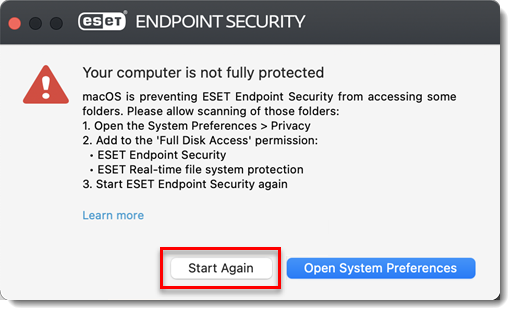 Figure 3-7