ESet
The install package will appear in your Downloads folder or the default folder set by your browser. Double-click the installer file to open it.
Double-click Install ESET Endpoint Security. When prompted, click Continue to launch the Installation Wizard.
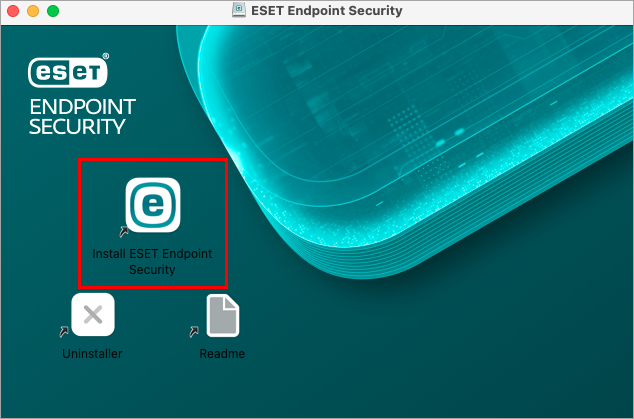 Figure 1-1
Remove any existing security applications such as antivirus, antispyware, or firewall from your computer if you have not done so already. Click Continue if no other security applications are installed.
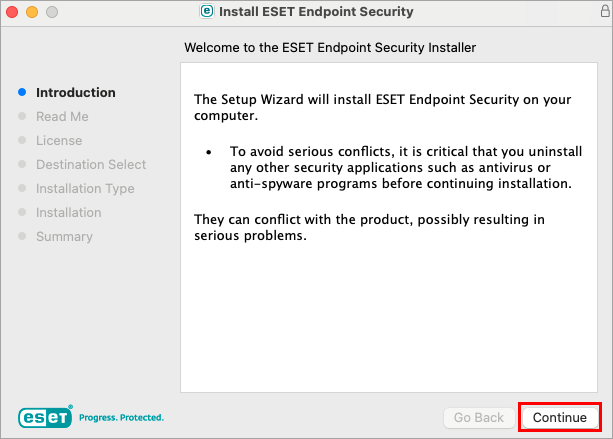 Figure 1-2
Review the system requirements and click Continue.
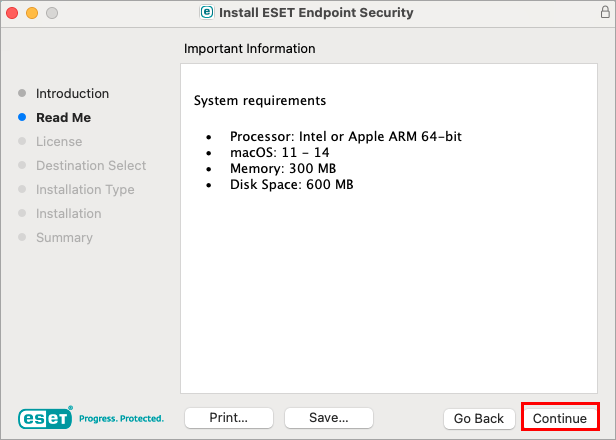 Figure 1-3
Read the ESET Software License Agreement and click Continue → Agree if you agree.
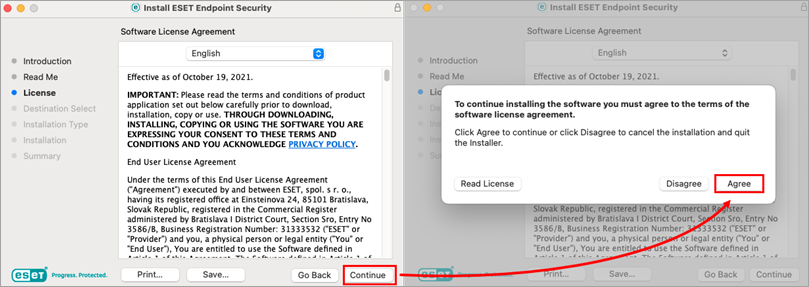 Figure 1-4
Select Install for all users of this computer (select Install on a specific disk if desired) and click Continue.
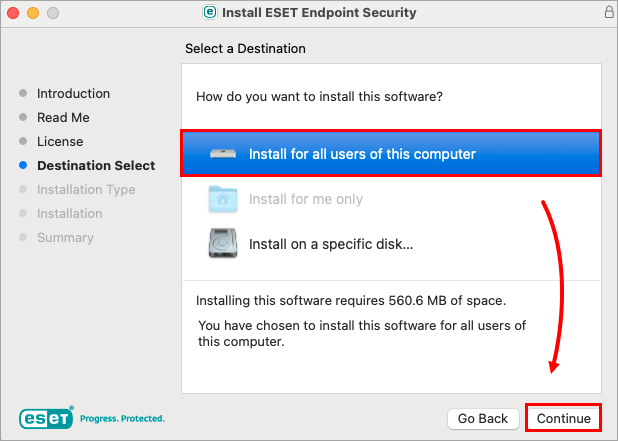 Figure 1-5
Click Install.
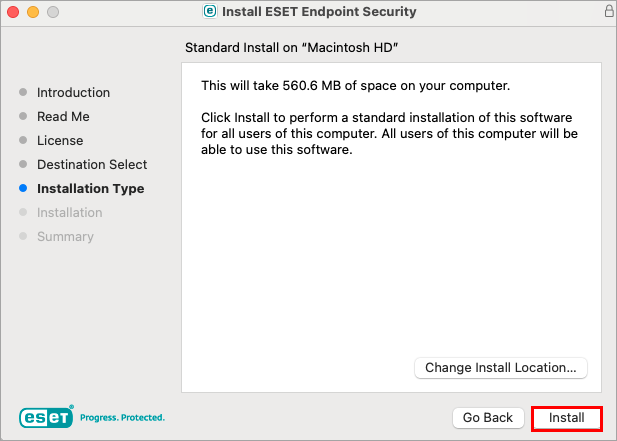 Figure 1-6
- Click Allow.
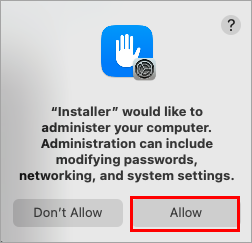 Figure 1-7
 - Click Continue.
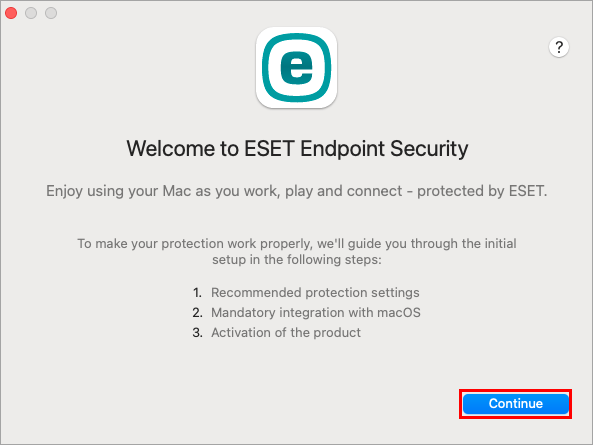 Figure 1-8
 In the Recommended Protection settings window, select your preferred options for Enable ESET LiveGrid feedback system and Enable detection of potentially unwanted applications and click Continue. These settings can be changed at a later time. See What is a potentially unwanted application?
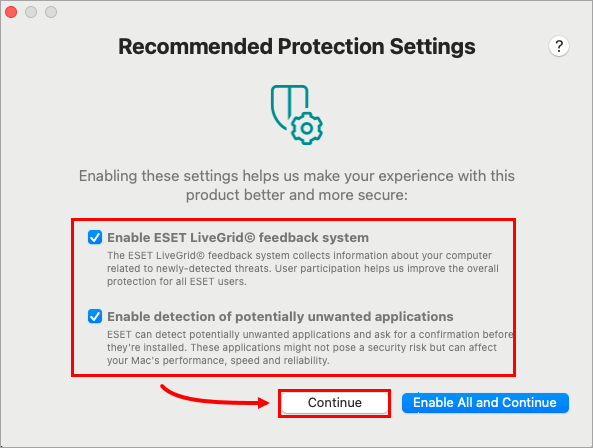 Figure 1-9
- In the Component Installation window, select the installation type that best suits your needs and click Continue. This step is not included in ESET Endpoint Antivirus for macOS version 7.x.
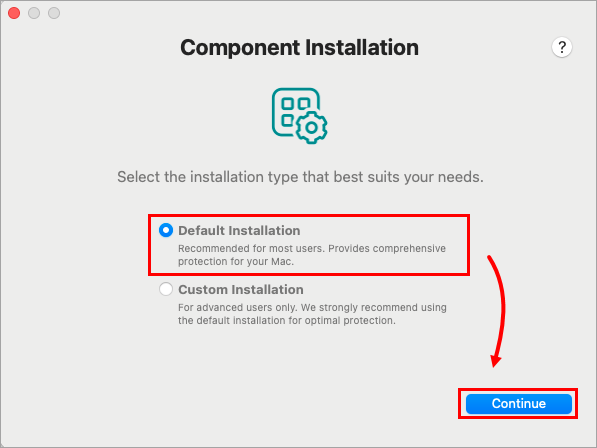 Figure 1-10
 Type your License Key and click Continue. After activation is successful, proceed to section II to enable system extensions and full disk access.
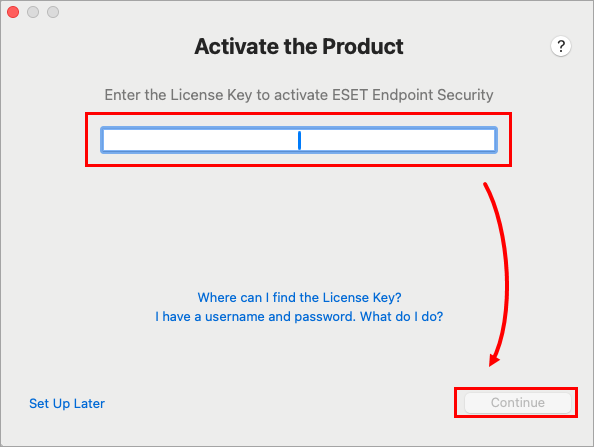 Figure 1-11
II. Allow system extensions, add proxy configurations and allow full disk access
After the installation, you will receive System Extension Blocked system notification. You will need to allow system extensions for your ESET product to work.
After allowing system extensions, you need to allow your ESET product to add proxy configurations for Web access protection to work. Click Allow. This option is required by Apple to increase your protection.
Click Allow in the ESET Network Access Protection alert window.
- Allow display notifications on the desktop. For example, new threats found, successful updates or virus scan completions.