DFU Mode 2018+
How to prepare a laptop to revive or restore
You will use the USB-C cable to connect the two computers, then enter DFU (device firmware update) mode on the affected computer.
Make sure that both computers are connected to power.
On the affected MacBook Pro or MacBook Air:
Plug the USB-C cable into the DFU port. Learn how to identify the DFU port.
Make sure that nothing is plugged into any other USB port, except as needed to connect your Mac to power. If your Mac has a MagSafe port, use that port for power instead of a USB port.
On the other Mac:
Plug the other end of the USB-C cable into any USB-C port.
Make sure that this Mac is turned on and connected to the internet.*
On the affected Mac, enter DFU mode:
Press and hold the power (Touch ID) button for up to 10 seconds, until the Mac turns off. If the Mac turns on instead, repeat this step.
Press and release the power button, then immediately press and hold all four of these together on the built-in keyboard:
Control ⌃ on the left side of the keyboard
Option ⌥ on the left side of the keyboard
Shift ⇧ on the right side of the keyboard
Power button
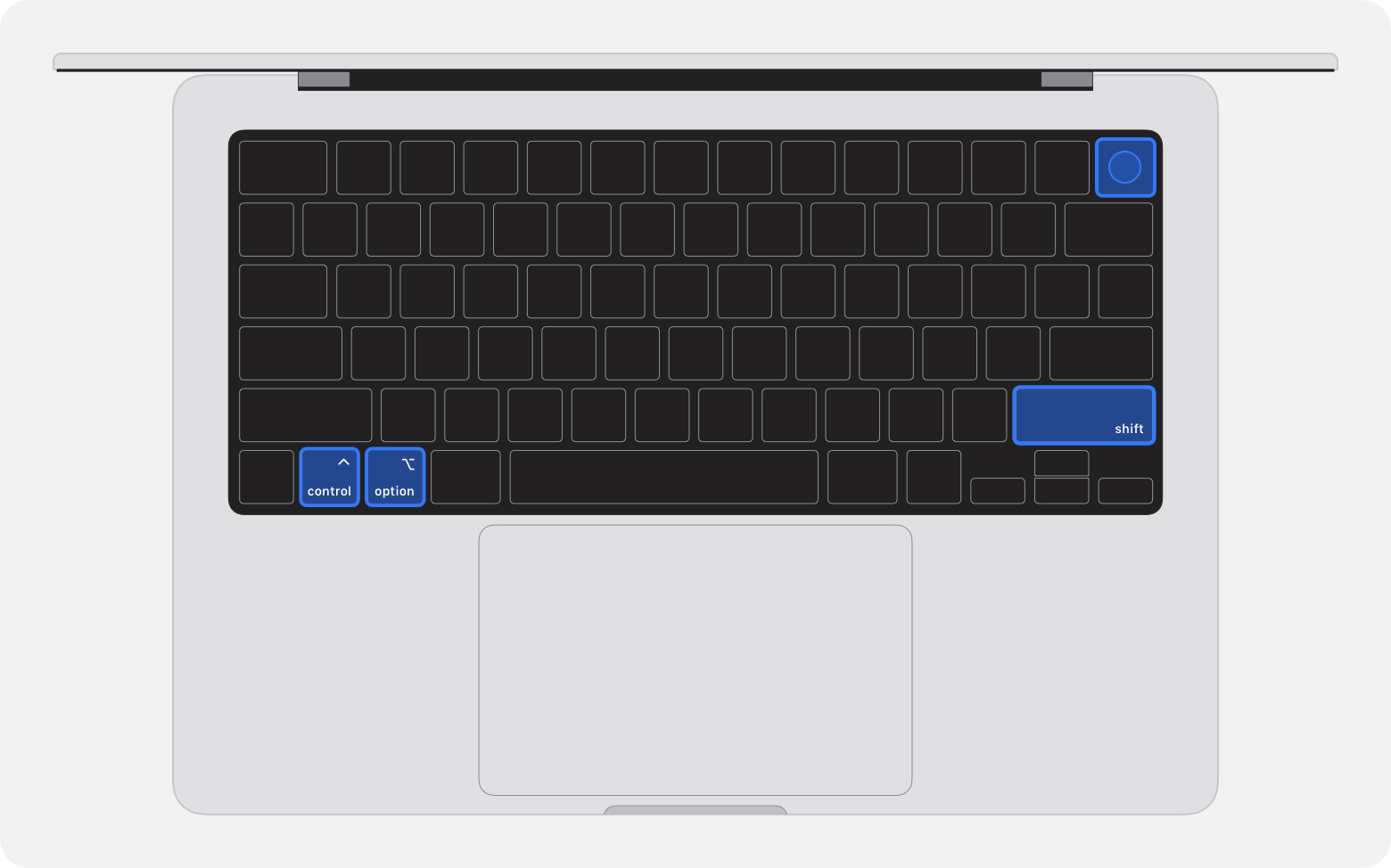
Mac laptop with Apple silicon: Keep holding all four keys for about 10 seconds, then release all keys except the power button. Keep holding the power button for up to 10 more seconds—until the other Mac shows a DFU window in the Finder. If it first shows an alert asking you to allow the accessory to connect, release the power button and click Allow.
Mac laptop with T2 chip: Keep holding all four keys for about 3 seconds—until the other Mac shows a DFU window in the Finder. If it first shows an alert asking you to allow the accessory to connect, release all keys and click Allow.
The affected Mac is now in DFU mode and should show a blank screen.
How to prepare a desktop computer to revive or restore
You will use the USB-C cable to connect the two computers, then enter DFU (device firmware update) mode on the affected computer.
On the affected Mac:
Plug the USB-C cable into the DFU port. Learn how to identify the DFU port.
Make sure that nothing is plugged into any other USB port.
On the other Mac:
Plug the other end of the USB-C cable into any USB-C port.
Make sure that this Mac is turned on and connected to power and the internet.*
On the affected Mac, enter DFU mode:
Unplug the Mac from power.
Press and hold the power button.
Keep holding the power button while plugging the Mac into power, and continue holding it for up to 10 seconds—until the other Mac shows a DFU window in the Finder. If it first shows an alert asking you to allow the accessory to connect, release the power button and click Allow.
The affected Mac is now in DFU mode and should show a blank screen.