N able
Set up access during the first Take Control connection
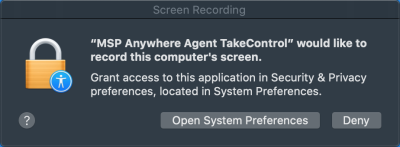
The first time you initiate the Take Control connection to the remote Mac running macOS 10.14, an Accessibility Access (Events) dialog displays. If the remote Mac is running macOS 10.15 and later, a Screen Recording dialog also displays. The dialogs only display one time per application during the first connection attempt, even if the application is uninstalled then reinstalled.
Set up access on a Mac running macOS 10.14
Work with the user who has administrator rights on that remote Mac running macOS 10.14 to complete the following steps in the Accessibility Access (Events) dialog.
- Click Open System Preferences.
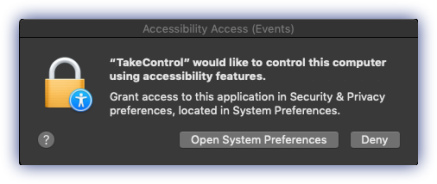
- Click Security & Privacy > Privacy > Accessibility.
- Click the padlock in the lower left of the window to unlock and allow changes.
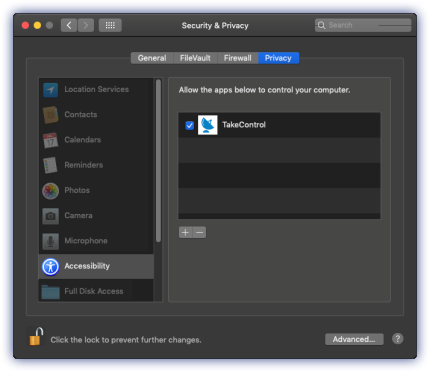
Enter the computer's administrative account credentials.
- Select the Take Control check box.
- Close the Security & Privacy window.
Set up access on a Mac running macOS10.15 and later
Work with the user who has administrator rights on that remote Mac running macOS 10.15 to complete the following steps in the Screen Recording dialog.
- Complete the steps above for the Screen Recording dialog.
- Click Open System Preferences.
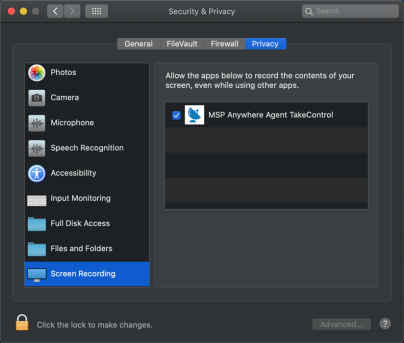
- Click Security & Privacy > Privacy > Screen Recording.
- Click the padlock in the lower left of the window to unlock and allow changes.
Enter the computer's administrative account credentials.
- Select the Take Control check box in the main window.
- Close the Security & Privacy window.
What to do if the Full Disk Access dialog displays
The user on the remote Mac may see this dialog display when Take Control attempts to interact with files on that Mac, for example during a file transfer. To allow this Take Control interaction, work with the user who has administrator rights on that remote Mac to complete the following steps in the Full Disk Access dialog:
- Click Open System Preferences.
- Navigate to Security & Privacy > Privacy > Full Disk Access.
- Click the padlock in the lower left of the window to unlock and allow changes.
- Enter the computer's administrative account credentials when prompted.
- Select the Take Control check box.
- Close the Security & Privacy window.
How to grant access when the dialogs do not display
Where the Accessibility Access (Events), Screen Recording, or Full Disk Access dialogs did not appear, or if the Mac administrator user wants to change their selected options (for example accidentally selected Deny instead of Allow), they can configure the setting directly.
- Navigate to System Preferences > Security & Privacy > Privacy, then select Accessibility Access (Events), Screen Recording, and Full Disk Access.
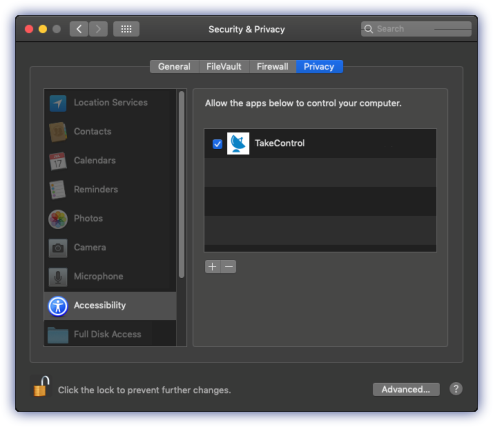
- Click the padlock in the lower left corner to unlock and allow changes.
- Enter the computer's administrative account credentials.
- Select the Take Control check box.
- If Take Control does not display but is installed on the computer:
- Click + below the main window.
- Navigate to the Applications folder (use Finder if needed).
- Select Take Control.
- Click Open.
- Take Control should now appear in the main window for selection.
- Close the Security & Privacy window